Monday, 25 March 2024

Transformer Cube Datasource

 Cognos Transformer datasources can be found in cs7g.ini located in <install location>\CS7Gateways\bin folder.

There will be entries under [Databases]. The name will be the same as the one defined in Datasources window.

Thursday, 24 March 2022

Cognos v11 Long Columns When Exporting to Excel v1

I encountered another export to excel issue where the 3rd column stretched too long because a text somewhere in the headers is too long and the solution in my previous post did not work. 


After a bit of reading and testing I found another solution... add multiple columns to the table where the text is located, then merge the columns. 

How many columns you need to merge depend on several factors including how long the text is, the other text headers/labels in other part of the report, etc. You just have to experiment to get the best excel output you can get.


Thursday, 25 February 2021

Cognos v11 Long Columns when Exporting to Excel

 I encountered this issue of unsightly long header columns when exporting to excel.


Simple solution is to set the column width of the offending cell to limit its length.


Viola better looking report rendered in Excel.


A bit of a side effect is that the HTML output looks like this. Not that bad though.


Wednesday, 23 December 2020

QE-DEF-0030 QE-DEF-0360 2-part Reference

 I recently encountered this error in one of the crosstabs of a report I am editing:

QE-DEF-0030 Expression parsing error.
QE-DEF-0360 The query contains a reference to at least one object '[SQL2].[migratedColumn]' that does not exist. Possible cause is the use of 2-part reference to a model query item, which is a deprecated feature.

This happens when I run or preview the report. Tabular view of the query is ok and returns data.

The root query, let us call it YTD, has SQL as its source. The crosstab's query source, is using YTD as its source:


I check everything in the query and crosstab, including the data items for sorting, etc and everything seems to be ok. .Took me several hours to figure out what is wrong.

Turns out, I edited the SQL and somehow did not validate it. Validating the SQL made the error go away.

Thursday, 23 April 2020

FM Datasource Configuration

I was having a little bit of a hard time figuring out why the numbers is my cognos report do not match with the data from my SQL Server query. After some tests, I realized I might not have same datasource. After some more checking, I noticed this configuration in my Framework Manager model:

I need to do some test again to describe my observations and infer what is happening.

Tuesday, 29 October 2019

Content Store Tables

Here are some information on the content store tables with a couple of edits. The sources are found in the links below. Credit (or blame :)) goes to them.

CMOBJECTS - content store objects (as of v11)
CMCLASSES - object type (report view = 19, etc)
CMREFNOORD1 - reference table. Here the report source of a view can be obtained.


https://www.ibm.com/developerworks/community/forums/html/topic?id=77777777-0000-0000-0000-000014692216


http://it.toolbox.com/wiki/index.php/Cognos_Content_Store

Cognos Content Store Database Tables Table name Description
CMSYSPROPS This table has the Content Store Version.
CMOBJNAMES This table has the names of all the objects in the content store.
CMOBJPROPS1 Users, Roles \ Group Distribution list and contact information such as Email, phone number, Fax Given name etc are stored in this table
CMOBJPROPS2 Report scheduling information is stored. This table has fields like hour, day week etc
CMOBJPROPS3 Stores Screen Tip and Object description provided while creating the objects are stored here
CMOBJPROPS4 Stores the printer paper setting details like height and width of A3 , A4 , letter and 11X17 paper orientations
CMOBJPROPS6 Has the details of the all packages which were published using the FM.
CMOBJPROPS7 This table stores the XML of all reports and models. This is basically to maintain the metadata about the structure of the reports and models.
CMOBJPROPS10 Contact information is stored in this table. This table has columns like Contact Email and Contact.
CMOBJPROPS11 This table stores the data sources configuration details like connect string, the cube location etc.
CMOBJPROPS13 It stores the names of parameter passed to the range prompts.
The binary value in CPARMVALUE is XML compressed with gzip.
CMOBJPROPS14 Has details regarding the versions, creation time etc of the objects in the content store.
CMOBJPROPS16 This table provides the status of the multiple services of Cognos like LogService, MonitorService, ReportService, SystemService, JobService
CMOBJPROPS17 Stores performance details of each component like “query Studio, Analysis Studio, Event Studio” etc
CMOBJPROPS18 This table stores the drill path from the source to the final target report.
CMOBJPROPS20 Stores details regarding which are all the reports for which prompting has been enabled. And also has the details of which are the reports which has the default report options overridden.
CMOBJPROPS24 Stores the printer configuration details
CMOBJPROPS25 Stores the data regarding the objects deployed, like the deployed folder, the reports, the number of folders present in the deployment archive, etc
CMOBJPROPS26 This table stores the data about all the packages imported / exported in C8, with the properties selected during the process.
CMOBJPROPS27 Has the details regarding the data source created in the content store using Cubes.
CMOBJPROPS30 Stores the registration , service description etc details about portlets in this table
CMOBJPROPS31 Has the custom logging level for each of the Cognos services, CMID can be be linked to CMOBJNAMES for the names of each of the services
CMOBJPROPS32 Has the details of the stored procedures used as the query items in the FM model.
CMOBJPROPS33 Detail related to users, user groups user roles.
CMOBJPROPS34 Has the details regarding the drill through parameters of the drill through reports. The parameter assign values are present in coded format
CMOBJPROPS36 Has the list of all the Models published using framework manager
CMOBJPROPS37 This table has the details of the routing sets configured for server / load balancing for each package published in the content store
CMOBJPROPS38 Configuration details about number of items to retrieve in studios, for a package are saved under this table.
CMOBJPROPS39 Has values for properties of reports and views. PROPID can be linked to CMPROPERTIES for property names
CMOBJPROPS52 Contains the properties for the connections
CMOBJPROPS55 Has the URI for icons for each entry in Cognos Connection
CMLOCALES Has the locale ids associated with each language supported by Cognos 8

Friday, 12 April 2019

Define Data Server Connection in Cognos v11

for Microsoft SQL Server:

JDBC URL is:
jdbc:server://<server name>\<instance>:<port number>;DATABASE=<database name>

This is the format I was able to make it test successfully. Make sure your port number is correct. To find out SQL server port, please see previous post.

This also worked:
jdbc:server//<server name>:<port number>;DATABASE=<database name>;INSTANCENAME=<instance name>

You can also use a datasource connection already defined in Cognos Administration provided the JDBC connection for that datasource is enabled and configured (DQM enabled). You just have to check the Allow web-based modeling checkbox. You can find this checkbox in Connection tab of Properties for the datasource.

Friday, 22 March 2019

Avoid Detail Filter in Page Set

Here is a cool puzzle posted by CommandoCognoise and fully solved by CognosPaul in cognoise.com

The simple report displays a crosstab with two sets of rows, [Product] and [Sales Employee]. Columns consist of [Year] and measure is the [Sales].

However there is a requirement to display the crosstab across multiple pages per employee. Thus page 1 will look like:


and page 2 will look like:

At first glance, the requirement could easily be accomplished using page sets grouped by [Sales Employee] and creating a master-detail relationship on that column. However this will result to the [Product] getting filtered by the specific employee.

To get around this, I nested the [Product] row with the root member of [Employee] dimension.

Nesting the columns with the [Employee] root member will also work.

But there is another solution which will not require nesting the rows or column. This is particularly useful if the format is required as the report is getting exported to excel to be processed further.

First step is to create another query with an [Employee] data item. This will be used for the page set.

The second query is the one which contains the items to be used in the crosstab. Add a data item calculation which looks like:

#prompt('emp','mun','[MUN OF ROOT MEMBER OF EMPLOYEE]')#

Replace the [Employee] row with this data item. The last step is to replace the master-detail relationship linking the [Employee] data item from the first query used in the page set with the 'emp' parameter.

One coolest solution!

Wednesday, 13 March 2019

DQM in Cognos Analytics

MS SQL Database

As of Cognos 11 sqljdbc4.jar is only needed in <install folder>\drivers

Do not put in <install folder>\v5dataserver\lib nor in <install folder>\webapps\p2pd\WEB-INF\lib
Doing so will generate a BMT-IMP-0002 CAF-WRN-2082 error when adding a Query Item in Framework Manager.


Defining both instance name and port is ok. Make sure you know the port number. If not, use this query to find out the port number:

select distinct local_net_address, local_tcp_port
from sys.dm_exec_connections
where local_net_address is not null

If the user credentials is not authorized to run that query, then for now you are out of luck.

Datasources with jdbc connector can also be used as data servers by checking the "Allow web-based modeling" box on Connection tab in datasource properties section.

In your Framework Manager model, you can set the query mode property to DQM or Compatible mode by selecting the Project and changing the query mode property.


Thursday, 7 March 2019

Cognos Analytics Prevent View Link Breaks

I'll edit later. For now I need to save this link

https://www.ibm.com/communities/analytics/cognos-analytics-blog/administration-changing-the-behaviour-of-object-copying-in-cognos-analytics-11-0-7-release-7/

Tuesday, 5 March 2019

Install Cognos v11 with Single Sign On

In this post, I will put in detail the steps how to install Cognos v11 with single sign on (SSO) capability. I will also write down the issues I encountered as well as the solutions to the said issues. Note that I was installing Cognos Analytics for Windows 64bit version 11.0.13. I'll add another note as well that we do not require dynamic query mode (DQM) so I don't know if there are additional files needed for DQM.

Since we were using Microsoft SQL Server for our backend as well as our content store database, the first thing to do is:


  • Download the SQL Server driver. The file you required is sqljdbc4.jar. 


After several attempts to install trying out different options, the only way I was able to make SSO work smoothly is to


  • Install using custom installation and select all components. Particularly include optional gateway.
Before running Cognos Configuration,

  • Copy the sqljdbc4.jar in <install folder>\webapps\p2pd\WEB-INF\lib
or any folder which is included in the java path like <install folder>\drivers. The first folder I mentioned has .jar files in it so the sqljdbc4.jar seems to be at home in that folder. Again, do this only if you will use MS SQL Server database.

** this cause BMT-IMP-0002 CAF-WRN-2082 error when importing tables in Framework Manager. Try to copy sqljdbc4.jar in <install folder>\drivers instead.
  • Run Cognos Configuration.
You only need to configure your content store and authentication (we use LDAP). And while you are in authentication, might as well disable anonymous login. Start your Cognos services and test by logging in to:

http://<servername>:9300/bi/v1/disp

If you can open this page successfully and login, you are half way through.

  • Download the IIS automated script here:
https://www.ibm.com/support/knowledgecenter/en/SSEP7J_11.0.0/com.ibm.swg.ba.cognos.inst_cr_winux.doc/t_gateway_iis.html

You can initially follow the instructions manually. You will appreciate the script a lot more if you do. And it is a great learning experience.

appcmd list app
appcmd delete app


Monday, 21 November 2016

Cube Deploy to Another Server

Use SFTP login with no password. Follow instructions in this link:

http://www.jscape.com/blog/setting-up-sftp-public-key-authentication-command-line

Wednesday, 16 November 2016

Creating Durable Models

One big advantage using durable Framework Manager model is that any change you make in the model will not have any effect on reports using that model (at least in theory). For example, should you change the name of a Query Item from "Company" to "Companies", after publishing, any report using this query model will still work fine (at least in theory). 
To create durable FM models, follow these steps:
1. Click on Project -> Languages -> Define Languages
2. Add another language preferably the same as what you are currently using. Example if your current Language is English, you can choose to add English (Malta).
3. Set this language as your Active Language.
4. Click ok
5. Click your Project in Project Viewer.
6. Set the Use Design Locale for Reference ID to True
7. Save
This should make your FM model durable.
Please not as of this time, I have not yet tested this process thoroughly. Hopefully I will be able to do so soon when I am not so busy anymore.

Free Disk Space 2

Another directory to look at if you find you are running out of disk space is the bin folder in your Cognos server installation.
Cognos will usually huge core dump files and save it in the bin directory. For windows the files will have a <process id>.dmp filename while in Linux the file will have core.<process id> filename.
I found several in my server and they consume nearly 20GB in disk space.

Hide an Object (Object Level Security)

At times, hiding an object to users is required. For example, only managers should have access to a certain table. Using data level security/filtering can still prevent viewing the data, but the users can still see the object.
To add object level security, select the object from Framework Manager, open Actions from Menu, and choose Specify Object Security. A pop up window will appear where the object security can be edited.
There are things one need to consider however when using object level security. The first is that when you add object level security, everyone is denied access to the object EVEN SYSTEM ADMINISTRATORS. Those who have access to the objects needs to be explicitly specified.
In this example below, I denied the System Administrators access to table Table2 and gave Everyone access to Table 1.

object_level_security_tables
In Report Studio, even a System Administrator will not be able to access Table2.

report_studio

Please note that if a user belongs to more than 1 role or group, and one of those groups are denied access, the user WILL BE DENIED ACCESS as well. All the groups the user belongs to should have access for a user to gain access to an object with object level security. For any conflicting security access, the deny access will have priority.


Thursday, 17 March 2016

Cryptographic Key Error

Part of Cognos configuration is the length of time the encryption key will stay valid. If the encryption key expires, the Cognos administrator needs to regenerate the key in EVERY instance/installation. The setting can be found here:


To regenerate the encryption keys, follow these instructions, which can be found from this link as well:
http://www-01.ibm.com/support/docview.wss?uid=swg21383421
Steps to Regenerate Cryptographic Keys
1. Stop the Cognos services.
2. On the Content Manager computer, back up the existing cryptographic keys by saving the
following directories to an alternate location that is secure:
● c10_location/configuration/csk
● c10_location/configuration/encryptkeypair
● c10_location/configuration/signkeypair
3. Open Cognos Configuration, go to the File menu and select Export As, click yes at the prompt and save the file as backup.xml in the c10_location/configuration folder.
4. Delete the csk, encryptkeypair, and signkeypair directories.
5. In the c10_location/configuration folder, rename the existing cogstartup.xml to cogstartup.old
6. In the c10_location/configuration folder, rename backup.xml to cogstartup.xml.
7. Open Cognos Configuration, save the configuration and restart the services.
8. Repeat steps 1 to 7 on all computers that have Cognos components installed.
I however encountered an error when I was about to export the file (step #3). Fortunately, Cognos periodically saves cogstartup.xml file in \configuration
I renamed (backup) the current cogstartup.xml, and replaced with the latest cogstartup that Cognos saved. The error that I encountered in step #3 went away.
Some configuration settings however changed. Fortunately, I was able to save a screenshot of all the configuration values while the server was still up and running. That is also a very good tip, the moment you get access to Cognos server configuration, take a screen shot of all the values.

Create Half Year Level

When Cognos Transformer generates the Time Dimension, it does not have a Half Year Level. To add a half year level in your cube follow the following steps:
1. Generate the Time Dimension
2. Insert Half Year level above Quarter
half_year
3. Generate categories
4. Click Show Diagram. You will see that from Year level, the data directly links to Quarter level
time_categories
5. Click on a Year and drag and drop the line to Half Year column. Fill up the category information with Half year label and code.
6.Link the associated Quarters with the Half Year value by clicking on the Half Year value and dragging and dropping the line to the Quarter value.
half_to_quarter
Keep in mind that if you do a full clean house, the Half Year member you created will be erased and you have to add them again manually.

Cube Refresh Report

I was asked to create a report that will show the refresh times of three cubes. The first thing I thought was three different reports displayed in a tab. The task however can be accomplished with one report only.
To do this, you must import the data source connection of the cubes in your FM package. Use the usual “Run Metadata Wizard” and select the Cube data source.

After successfully importing the cube data source, the icon looks like the one above. Publish the package and use normally.

Refresh Transformer Cube from UNIX

So I was able to successfully made my cubes refresh from UNIX. Here are the steps:
First, set the processing option to “On the server”. This can be found in the Processing tab of the cube properties:
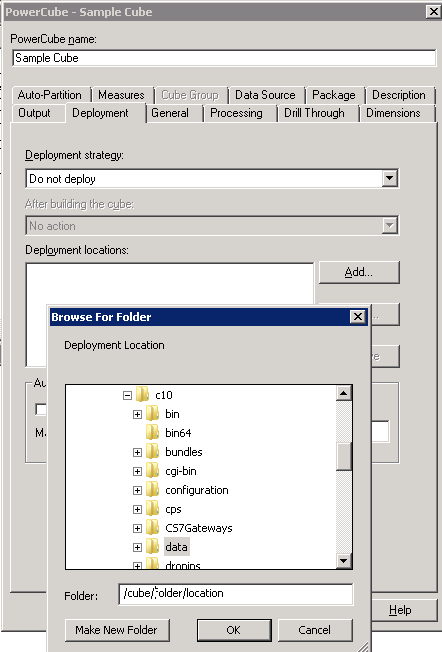
Next change the deployment folder. Use UNIX syntax. Note that Transformer will not be able to verify the folder that is specified so it is important that the correct directory path is given.


Almost there. The command line should be edited to that which is compatible with UNIX. Here is the syntax I used based on the cube from the previous post:
./cogtr -c -lS1=’admin/admin123′ -g’My Cube’ -m’/cube/location/in/unix/mycube.mdl’
A few reminders:
1. avoid using cube names or deployment folders with spaces
2. avoid using uppercase in cube or folder names as well as UNIX is case sensitive
I have not discovered how to properly set the location of the log files so I redirect the output to a file to save my logs:
./cogtr -c -lS1=’admin/admin123′ -g’My Cube’ -m’/cube/location/in/unix/mycube.mdl’ >> /logfolder/mycube.log

Monday, 14 March 2016

Refresh Transformer Cube from Windows Command Line

I would like to record the things I remember about refreshing cubes using Windows command line parameters before I forget about them. Here are the things and tips I remember.
First, open your cube from Cognos Transformer. Determine dimension(s) wherein the lowest levels might have duplicates during refresh. Right click on the lowest level and tick the “Move” option. This will prevent the process from terminating once a duplicate is encountered.

lowest_level
Next make sure you only have one cube defined. More specifically, remove the unneeded cubes as they would also be refreshed automatically, adding to your refresh time.

cube
Make sure you set the deployment parameters properly.
deployment
Create a singon for security. Give the correct username and password. Remember the name of the signon as it will be used in the command line. In the sample image below, the name of my signon is S1.

signon
At this point you are almost ready to create the command line script. Go to the machine from where you intend to run the script. Ideally, it is the same machine where Transformer and Framework Manager is installed. This is to make sure that the proper configuration is already in place.
From here on, basic knowledge of DOS is required. Locate the Cognos installation folder, it should contain the bin directory which in turn contains the cogtr.exe file. In your script it is advisable to run the CD command to this folder (although this is not necessary if you can set the search path, etc, that is if you are really good at DOS). For example:
cd \Program Files\ibm\cognos\cognos10\bin
Next run the cogtr.exe with the following options:
cogtr.exe -c -n2 -lS1=”admin/admin123″ -g”My Cube” -m”c:\cognos\cube\location\mycube.mdl”
You can use other options as necessary. Here is a simple explanations on the sample options I used:
-c = This option loads a model file, interprets MDL statements, generates categories, and creates cubes.
-n2 = opens Transformer in batch mode with the Transformer application window hidden. There is no space between -n and the display_state argument, 2.
-lS1 = “admin/admin123″ = uses the signon “S1″ as specified above. admin/admin123 is the login name and password
-g”My Cube” = deploys “My Cube” as created above
-m”c:\cognos\cube\location\mycube.mdl” = location of your cube.